
Printer Setup for Chinese Characters
EPSON TM-U220 Receipt (Simplified Chinese Driver)
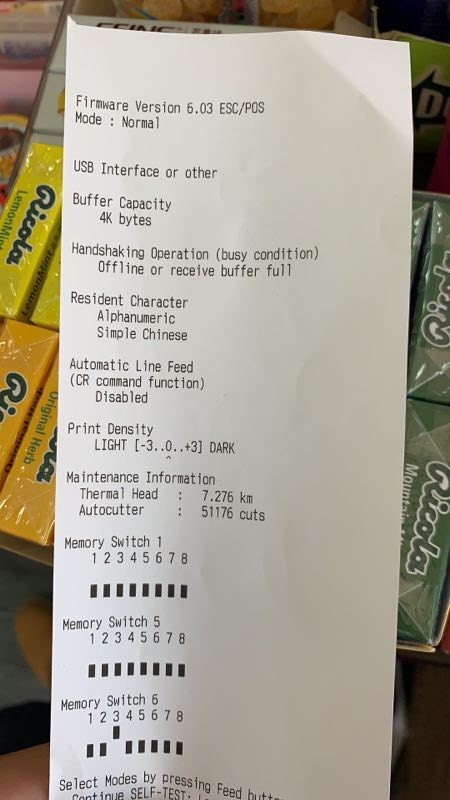
- DIP SWITCH, to set resident characters to Simplified Chinese GB18030. Note: To check resident characters, hold the Feedback button of printer before powering on.
EPSON TM-T82 Receipt (South Asian Driver)
- Memory Switch, to set resident characters to Simplified Chinese GB18030. Note: To check resident characters, hold the Feedback button of printer before powering on.
- To set resident characters to Simplified Chinese GB18030: [怎么设定简体中文字母 GB18030: ]
- Hold the Feedback button of printer before powering on. [ 打开打印机之前,请按住打印机的“反馈”按钮 ]
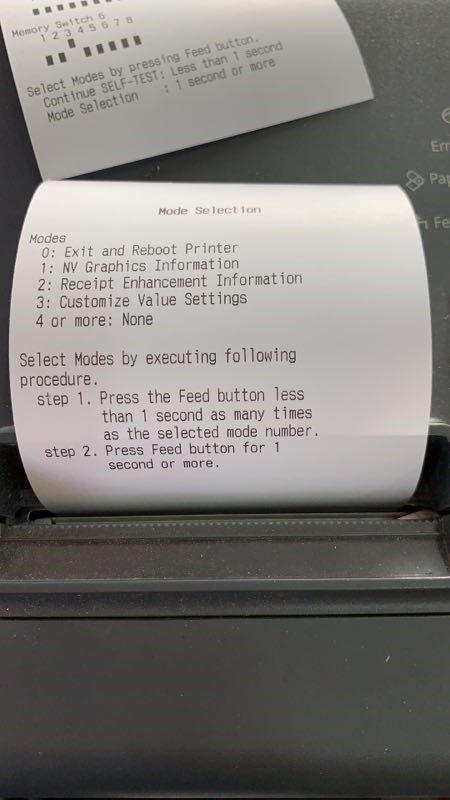
- Hold again the feedback button for more than 1 second to display the menu option. [ 再次按住反馈按钮1秒钟以上,显示设定选项。]
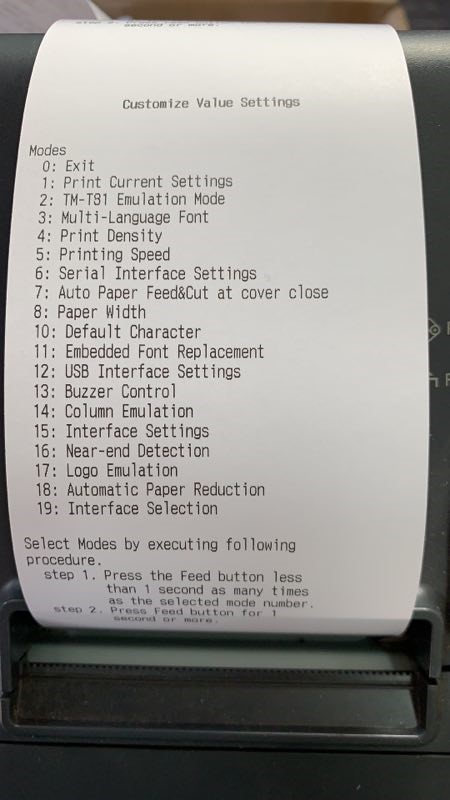
- Select '3: Customize Value Settings'. (Click the feedback button 4 times and hold it on 4th time) [ 选择‘3:Customize Value Settings’(按下"反馈"按钮4次,然后按住第4次) ]
- Select '3: Multi Language Font'. (Click the feedback button 4 times and hold it on 4th time) [ 选择‘3: Multi Language Font’(按下"反馈"按钮4次,然后按住第4次) ]
- If * is on '1: Thai, Vietnam', select '2: Simplified Chinese'. (Click the feedback button 3 times and hold it on 3rd time) [ 比如 * 是在 '1: Thai, Vietnam',选择'2: Simplified Chinese' (按下"反馈"按钮3次,然后按住第3次) ]
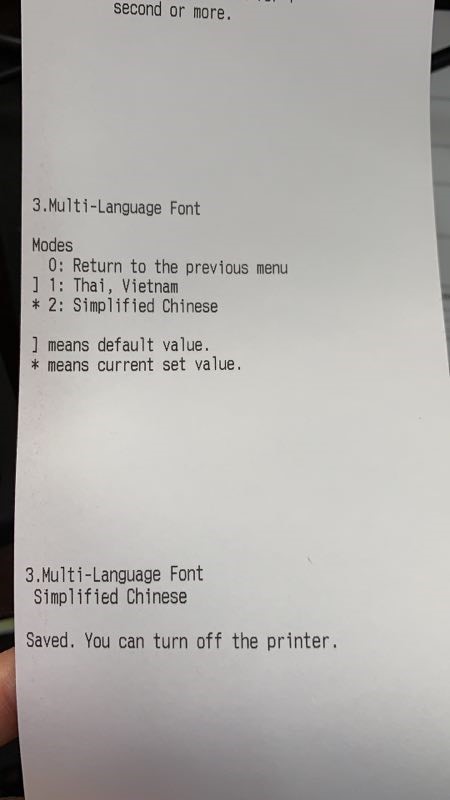
- Proceed to exit afterwards. [ 重启打印机 ]
- To set resident characters to Simplified Chinese GB18030: [怎么设定简体中文字母 GB18030: ]
- On POS Config (Setting.xml in Resto), in Printer Settings, set Print Receipt Actual to 48 and Print Receipt Limit to 48. [ 销售收银台POS Config(餐厅收银台setting.xml),Printer Settings里,设定Print Receipt Actual=48 和 Print Receipt Limit=48. ]
- On POS Config (Setting.xml in Resto), in Printer Settings, set Print Receipt DisableBypass to True. (PrintReceiptSentFontToB to 0 in Resto) [ 收银台POS Config(餐厅收银台setting.xml),Printer Settings里,设定DisableBypass=True(餐厅收银台PrintReceiptSentFontToB=0)]
- On POS Config, in POS settings, set Print Chinese Characters to True. [ 收银台POS Config, POS Settings里,设定Print Chinese Characters=True ]